WordPress powers over 40% of the web. Its popularity comes from flexibility, ease of use, and the thousands of plugins that extend functionality. But that same power brings a critical challenge: choosing the right plugins without bloating your site, compromising security, or tanking performance.
This guide walks you through the essential WordPress plugins for speed, security, SEO, and performance—and helps you avoid the plugin traps that slow down or break WordPress sites.
The WordPress plugin trap
WordPress is extensible. Every feature you want, there’s a plugin for it. But more plugins = slower sites, more security vulnerabilities, more maintenance headaches.
Common plugin mistakes
- Installing too many plugins — every plugin adds code, requests, and complexity
- Using outdated plugins — abandoned plugins become security risks
- Choosing the wrong plugin for the job — bloated plugins that do too much
- Not testing before activating — bad plugins crash sites
- Ignoring plugin conflicts — incompatible plugins create weird bugs
- Leaving unused plugins active — deactivate plugins you don’t use
The reality of WordPress performance
WordPress sites running 30+ plugins are typically slower than well-optimized sites running 10-15 plugins.
The best WordPress site is one with:
- Only essential plugins
- Well-maintained, updated plugins
- Lightweight alternatives to bloated solutions
- Proper caching and optimization setup
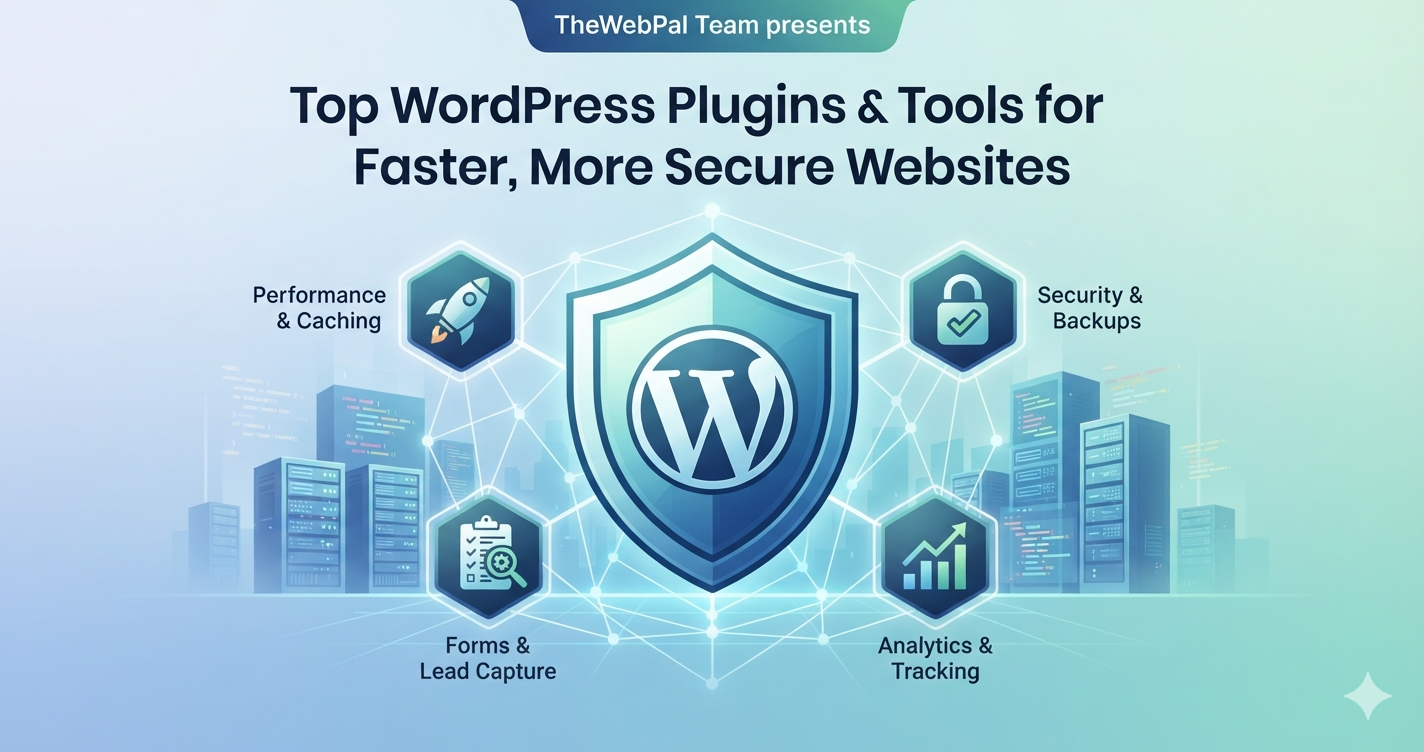
The essential WordPress plugin categories
For a small business WordPress site, you need plugins in these categories:
- Caching and performance — make your site fast
- Security and backups — protect your data
- SEO and content — help search engines find you
- Forms and lead capture — collect visitor information
- Analytics and tracking — understand your visitors
Everything else is optional and depends on your specific needs.
Performance and caching plugins
Your #1 priority after launching WordPress is making it fast.
Why caching matters
WordPress generates pages dynamically using PHP and your database. This is flexible but slow. Caching stores a static version of pages so visitors get fast HTML instead of waiting for database queries.
A good caching plugin can cut page load time in half.
Top caching plugins
LiteSpeed Cache (free, with paid options)
Best for: cost-conscious sites wanting strong performance.
Why it works:
- Free core plugin with powerful caching
- Lazy load images automatically
- CSS and JavaScript minification
- Works great on LiteSpeed-powered hosts (Hostinger, SiteGround, etc.)
Considerations:
- Requires LiteSpeed server or can still help on standard servers
- Somewhat complex settings for advanced users
Cost: Free core, $99+/year for premium features
WP Rocket (paid only)
Best for: professional sites where performance is critical.
Why it works:
- Easiest setup of any caching plugin
- Powerful caching, image optimization, CDN integration
- Great support and regular updates
- Recommended by agencies and developers
Considerations:
- Paid only ($39-299/year depending on sites)
- Overkill for very simple sites
- Some features require external services
Cost: $39/year for 1 site, up to $299/year for unlimited
Affiliate opportunity: WP Rocket offers affiliate program (20-40% commission).
Kinsta Managed Hosting Cache
Best for: sites hosted on Kinsta — included with hosting.
Why it works:
- Server-level caching (faster than plugin caching)
- Automatically optimized for WordPress
- Built into Kinsta’s managed WordPress hosting
- No configuration needed
Considerations:
- Only available on Kinsta hosting
- Premium hosting ($35+/month)
Cost: Included with Kinsta hosting
Security and backup plugins
WordPress security breaches are common. You need active protection and regular backups.
Why security matters
A hacked WordPress site can:
- Lose customer data
- Redirect visitors to malware
- Get blacklisted by Google
- Require expensive recovery
- Damage your business reputation
Prevention and backups are non-negotiable.
Top security plugins
Wordfence Security (free with premium option)
Best for: comprehensive security at low cost.
Why it works:
- Real-time threat detection
- Web application firewall (WAF)
- Login attempt limiting
- Daily security scans
Included in free version:
- Firewall protection
- Login security
- Malware scanner
- Security audit
Considerations:
- Free version is quite capable
- Premium ($120/year) adds advanced features
- Can impact performance if misconfigured
Cost: Free or $120/year premium
Sucuri Security (free with premium)
Best for: security monitoring and incident response.
Why it works:
- Malware detection and cleaning
- Security monitoring
- Blacklist monitoring
- Post-hack support on premium
Considerations:
- Best as complement to other security measures
- Premium includes active support for threats
Cost: Free monitoring or $200+/year premium
All In One WP Security & Firewall (free)
Best for: basic security hardening.
Why it works:
- Simple interface
- Firewall and user account security
- Backup integration
- No bloat or unnecessary features
Considerations:
- Lighter than Wordfence
- Good for sites wanting simpler security
Cost: Free
Backup plugins
Backups are not optional. They’re insurance.
UpdraftPlus (free with premium)
Best for: easy, reliable backups.
Why it works:
- One-click backups
- Cloud storage integration (Google Drive, Dropbox, S3, etc.)
- Scheduled automatic backups
- Easy restore
Included free:
- Daily backups to cloud storage
- Full site and database backup
- Restore with one click
Premium ($70/year):
- Incremental backups
- Backup transfers
- Priority support
Cost: Free or $70/year premium
BackWPup (free)
Best for: budget backup solution.
Why it works:
- Completely free
- Cloud backup support
- Database optimization
- No premium upsell
Considerations:
- Less polished than UpdraftPlus
- Fewer features than premium backup services
Cost: Free
SEO and content plugins
WordPress is SEO-friendly by default, but plugins can help optimize your content and structure.
Top SEO plugins
Yoast SEO (free with premium)
Best for: content optimization and technical SEO fundamentals.
Why it works:
- On-page optimization guidance (keyword, readability, links)
- Sitemap generation
- XML sitemap for search engines
- SEO basics taught as you write
Free version includes:
- Keyword optimization
- Content analysis
- Readability checks
- Basic technical SEO
Premium ($99/year):
- Multiple keyword focus
- Advanced features
- Priority support
Considerations:
- Best for beginners learning SEO
- Can be restrictive if you know SEO better than the plugin
- Somewhat heavy plugin
Cost: Free or $99/year premium
RankMath (free with premium)
Best for: advanced SEO features at lower cost.
Why it works:
- More powerful than Yoast in many ways
- Content AI integration (for $15/month)
- Advanced schema and structured data
- Better UX than Yoast
Free version includes:
- Keyword tracking
- Content optimization
- Technical SEO audit
- Schema markup
Premium ($39/year):
- Advanced AI tools
- Content assistant
- Local SEO features
Cost: Free or $39/year premium
Affiliate opportunity: RankMath offers affiliate program.
The SEO Framework (free)
Best for: lightweight SEO without bloat.
Why it works:
- Minimal code footprint (doesn’t slow sites)
- Solid technical SEO foundations
- Clean, distraction-free interface
- No premium upsell
Considerations:
- Less content optimization guidance than Yoast or RankMath
- Best for experienced SEO users
Cost: Free
Forms and lead capture
Converting visitors into leads requires easy-to-use forms.
Top form plugins
WPForms (free with premium)
Best for: simple forms without coding.
Why it works:
- Drag-and-drop form builder
- Pre-built templates
- Email notifications and automation
- Conditional logic
Free version includes:
- Basic form building
- Standard fields
- Email integration
Premium ($199.99/year):
- Payment forms
- Advanced integrations
- Leads addon
Cost: Free or $199.99+/year premium
Gravity Forms (paid only)
Best for: complex forms, workflows, and automation.
Why it works:
- Industry standard for advanced forms
- Powerful conditional logic
- Integration ecosystem
- Great documentation
Considerations:
- Paid only ($59-399/year)
- Overkill for simple sites
- Steeper learning curve
Cost: $59-399/year depending on needs
Affiliate opportunity: Gravity Forms affiliate program available.
Analytics and tracking
Understanding your visitors helps you improve your site.
Top analytics plugins
MonsterInsights (free with premium)
Best for: easy Google Analytics integration.
Why it works:
- Connects to Google Analytics
- Dashboard in WordPress admin
- Form tracking
- Enhanced ecommerce tracking
Free version:
- Basic Google Analytics dashboard
- Page stats
Premium ($99.50/year):
- Enhanced ecommerce tracking
- Form analytics
- Advanced reports
Considerations:
- Google Analytics is free; this plugin just integrates it better
- Not required but helpful for non-technical users
Cost: Free or $99.50/year premium
Google Site Kit (free)
Best for: direct integration with Google services.
Why it works:
- Official Google plugin
- Integrates Google Analytics, Search Console, PageSpeed
- Setup wizard
- No upsell
Considerations:
- Requires Google account
- Simpler than MonsterInsights
Cost: Free
Essential plugin summary table
| Plugin | Purpose | Free tier | Cost | Priority |
|---|---|---|---|---|
| LiteSpeed Cache | Caching & speed | Yes | $0-99/year | ⭐⭐⭐⭐⭐ Essential |
| WP Rocket | Caching & speed | No | $39-299/year | ⭐⭐⭐⭐⭐ Essential |
| Wordfence | Security | Yes | $0-120/year | ⭐⭐⭐⭐⭐ Essential |
| UpdraftPlus | Backups | Yes | $0-70/year | ⭐⭐⭐⭐⭐ Essential |
| Yoast SEO | SEO | Yes | $0-99/year | ⭐⭐⭐⭐ Important |
| RankMath | SEO | Yes | $0-39/year | ⭐⭐⭐⭐ Important |
| WPForms | Forms | Yes | $0-199/year | ⭐⭐⭐ Important |
| Google Site Kit | Analytics | Yes | Free | ⭐⭐⭐ Good to have |
The ideal WordPress plugin setup for small business
Here’s a recommended starting setup (8 plugins total):
Must-have (5 plugins)
- LiteSpeed Cache or WP Rocket — performance
- Wordfence Security — security
- UpdraftPlus — backups
- Yoast SEO or RankMath — SEO optimization
- WPForms — contact and lead forms
Good-to-have (3 plugins)
- Google Site Kit — analytics dashboard
- Smush Image Optimization (free) — image compression
- MonsterInsights (if desired) — enhanced analytics
Total active plugins: 8-9
This setup covers all critical functions without bloat.
Plugins to avoid or be careful with
Avoid these altogether
- Page builders you don’t need — can slow sites significantly (Divi, Visual Composer if not essential)
- All-in-one SEO plugins with old code — All in One SEO, SEOPressor
- Abandoned plugins — check last update date; anything over 6 months old is risky
- Cheap backup plugins with poor reviews — backups are too important
- Multiple security plugins — they conflict; pick one good one
Be careful with
- Database optimization plugins — rarely needed on well-configured hosting
- Caching plugins on managed WordPress hosts — sometimes included; using two can break things
- Too many form builders — one is enough; having multiple causes conflicts
- Automatic posting plugins — can damage your SEO if misconfigured
How to keep WordPress fast and secure
Setup best practices
-
Start with only essential plugins
- Caching, security, backups, forms, SEO
- Add more only when you have a specific need
-
Keep everything updated
- Plugins, themes, WordPress core
- Enable automatic updates where possible
- Check for outdated plugins weekly
-
Test before activating
- Use a staging environment
- Test new plugins there first
- Check site speed and compatibility
-
Delete unused plugins
- Deactivate is not enough
- Delete plugins you’re not using
- Delete old theme files
-
Monitor performance regularly
- Use Google PageSpeed Insights or GTmetrix
- Aim for page load under 3 seconds
- If performance drops, identify the plugin causing it
Performance optimization checklist
- Caching plugin configured (WP Rocket, LiteSpeed Cache)
- Images optimized and lazy-loaded (Smush, native WordPress)
- Security plugin active with firewall (Wordfence)
- Backups scheduled and tested (UpdraftPlus)
- SEO plugin configured (Yoast or RankMath)
- Contact form in place (WPForms)
- Analytics connected (Google Site Kit or MonsterInsights)
- Page load time under 3 seconds
- Mobile speed optimized
- SSL certificate active (HTTPS)
Plugins vs. hosting configuration
Here’s an important truth: good hosting beats plugins every time.
A WordPress site on fast hosting with minimal plugins will outperform a bloated site on cheap hosting, even with caching plugins.
When plugins can’t fix slow hosting
- Server CPU limited → only so much plugins can cache
- Shared hosting with poor resources → caching helps but has limits
- Old server infrastructure → plugins can’t make old hardware fast
- Oversold hosting → caching won’t fix shared resource contention
Best approach
- Choose good hosting first (Hostinger, SiteGround, Cloudways)
- Use essential plugins only (caching, security, SEO, forms)
- Optimize images and content (compress, lazy load)
- Let plugins do the rest (they’ll work better with good hosting)
Good hosting + light plugins = fast site. Cheap hosting + heavy plugins = still slow site.
WordPress plugin cost summary
Budget option (free or minimal cost)
- LiteSpeed Cache (free, usually included with hosting)
- Wordfence (free)
- UpdraftPlus (free)
- Yoast SEO (free) or The SEO Framework (free)
- WPForms (free)
- Google Site Kit (free)
Total cost: $0-50/year
Professional option (paid, best experience)
- WP Rocket ($39/year)
- Wordfence Premium ($120/year, optional)
- UpdraftPlus Premium ($70/year, optional)
- RankMath SEO ($39/year)
- WPForms Pro ($199/year, optional)
Total cost: $40-450/year depending on which premium features you choose
Enterprise option (premium all-in)
- WP Rocket ($99/year for unlimited sites)
- Wordfence Premium ($120/year)
- Gravity Forms ($299/year)
- RankMath Pro ($299/year)
- Kinsta hosting with built-in security and backups ($100+/month)
Total cost: $500-2,000/year but fully managed and optimized
Frequently asked questions
How many plugins is too many?
For most small business sites, 8-15 plugins is healthy. 20+ starts to impact performance. 30+ is definitely too many.
The right number depends on what you need. Quality over quantity.
Do I need a premium plugin, or is the free version enough?
For most small businesses, free versions are sufficient. Premium versions are worth considering if:
- Free version is missing features you need
- You’re running high traffic or ecommerce
- The premium version includes support
Can I use multiple security or caching plugins?
No. Multiple security plugins conflict. Multiple caching plugins can break things.
Choose one security plugin and one caching solution.
How often should I update plugins?
As soon as updates are available, especially security updates.
Enable automatic updates in Settings > Updates to stay current without manual work.
What should I do if a plugin breaks my site?
- Access WordPress admin, go to Plugins
- Deactivate the problematic plugin
- Test if site works
- Try the plugin again or find an alternative
- Use a staging environment to test new plugins
Are affiliate plugin links ethical?
Yes, if you:
- Disclose that you earn a commission
- Only recommend plugins you genuinely use
- Don’t recommend a plugin just because it pays better commission
- Give honest pros and cons
Final recommendations
For a small business WordPress site launched in 2026, install these 5 essential plugins:
- Caching — LiteSpeed Cache (free) or WP Rocket ($39/year)
- Security — Wordfence (free)
- Backups — UpdraftPlus (free)
- SEO — Yoast SEO (free) or RankMath ($39/year)
- Forms — WPForms (free)
This setup is fast, secure, and optimized for business results. Add more plugins only when you have a specific need, not just because they exist.
Ready to audit your WordPress plugins and optimize your site? Contact TheWebPal for a performance review, plugin recommendation, or WordPress optimization. We’ll help your site run fast and secure.